> ## Documentation Index
> Fetch the complete documentation index at: https://docs.oculusproxies.com/llms.txt
> Use this file to discover all available pages before exploring further.
# How to Set Up Proxies With StablerSOLO
> Boost your data extraction workflows! By integrating Oculus Proxies with StablerSOLO, you can enhance anonymity, access geo-specific data, and bypass anti-scraping mechanisms effortlessly. This guide will walk you through configuring your proxy settings in StablerSOLO step by step.
## What is StablerSOLO?
**StablerSOLO** is a web scraping and data extraction platform that simplifies collecting structured data from websites. It offers a low-code interface, making it accessible for developers and data analysts who need to build efficient scraping workflows without custom coding.
If you're using **Oculus** to access search engines like **Google, Bing, or Yandex** and facing connection issues, the proxy type could be the reason. **ISP Premium Proxies** ensure stable and unrestricted access, preventing blocks that standard proxies might encounter. Switching to **ISP Premium Proxies** can help maintain smooth and reliable performance.
## How to Integrate Oculus Proxies With StablerSOLO
1\. Log in to your [StablerSOLO account](https://stabler.tech/).
2\. From the dashboard, navigate to the **Proxy Management** section, located at the bottom of the screen.
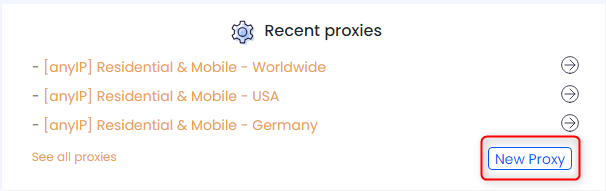
3\. Click on **New Proxy** to open the proxy configuration window.
 1\. In the proxy configuration window, switch to the **Proxy List** tab if it isn’t already selected.
2\. Log in to your [Oculus Dashboard](https://oculusproxies.com/dashboard/page/plans).
3\. Click **Show Configured List** under the **Generic** tab to copy your proxy details.
4\. Paste the proxy information into the **Proxies list** field in StablerSOLO.
5\. Click **Test a Proxy Randomly** to validate the connection. Ensure the test is successful before proceeding.
6\. Click **Add New Proxy** to save your proxy to the list.
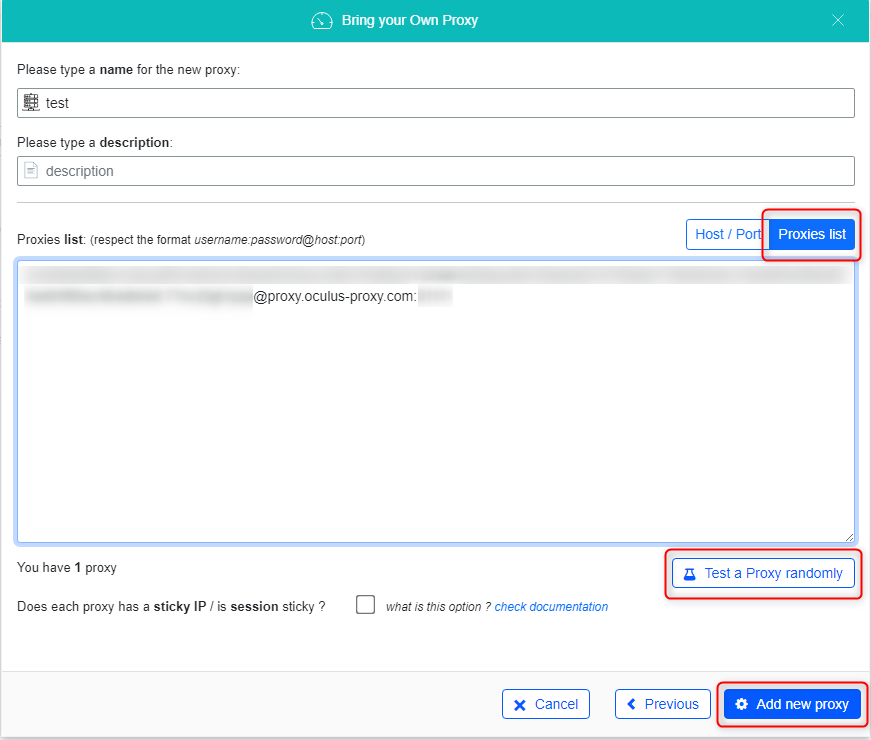
1\. In the proxy configuration window, switch to the **Proxy List** tab if it isn’t already selected.
2\. Log in to your [Oculus Dashboard](https://oculusproxies.com/dashboard/page/plans).
3\. Click **Show Configured List** under the **Generic** tab to copy your proxy details.
4\. Paste the proxy information into the **Proxies list** field in StablerSOLO.
5\. Click **Test a Proxy Randomly** to validate the connection. Ensure the test is successful before proceeding.
6\. Click **Add New Proxy** to save your proxy to the list.
 For geo-specific scraping, you can append the country code to your username (e.g., `your-username-country-US` for a US-based proxy).
1\. Once the proxy is successfully added, select it from the proxy list.
2\. Begin your web scraping task in StablerSOLO with a secure and anonymous connection.
You're all set! Enjoy seamless, undetectable, and reliable data extraction with **Oculus Proxies**.
For geo-specific scraping, you can append the country code to your username (e.g., `your-username-country-US` for a US-based proxy).
1\. Once the proxy is successfully added, select it from the proxy list.
2\. Begin your web scraping task in StablerSOLO with a secure and anonymous connection.
You're all set! Enjoy seamless, undetectable, and reliable data extraction with **Oculus Proxies**.